
The procedure requires that the Reporter database is pushed from your old appliance to the new one.
So, the first step is to bring your old Mutiny appliance back online, with a new IP address (as the old one will have been migrated to the new Mutiny appliance).
The old system will be still trying to poll your network, so you need to first disable all the Contacts under “[Admin]=>Contacts” so that no Alerts are sent out from it.
Next you need to apply a patch to your NEW Mutiny-8 appliance only. The patch is attached to this ticket and the instructions are as follows:
Unzip the archive file attached to this ticket and extract the file which must be precisely named "resetReporterFull.tgz.gpg".
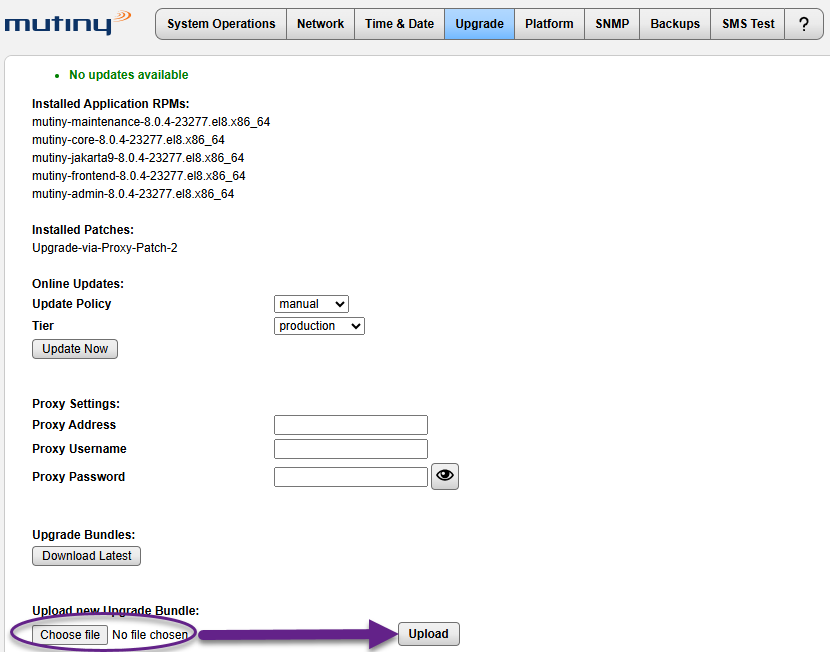
- Login into the Mutiny Maintenance Interface - https://<YourMutinyIP>:444 (as you would for an upgrade) and click the "[Upgrade]" tab.
- Click the "[Choose File]" button to browse, find and choose the extracted file, and click the "[Upload]" button.
- The script should run within a few seconds and you should see an "Upgrade Complete" message.
After the patch has completed. Log back into the main Front-End interface on your NEW Mutiny appliance and click to the "[Reporting]=Device Settings" page. It should appear as below?
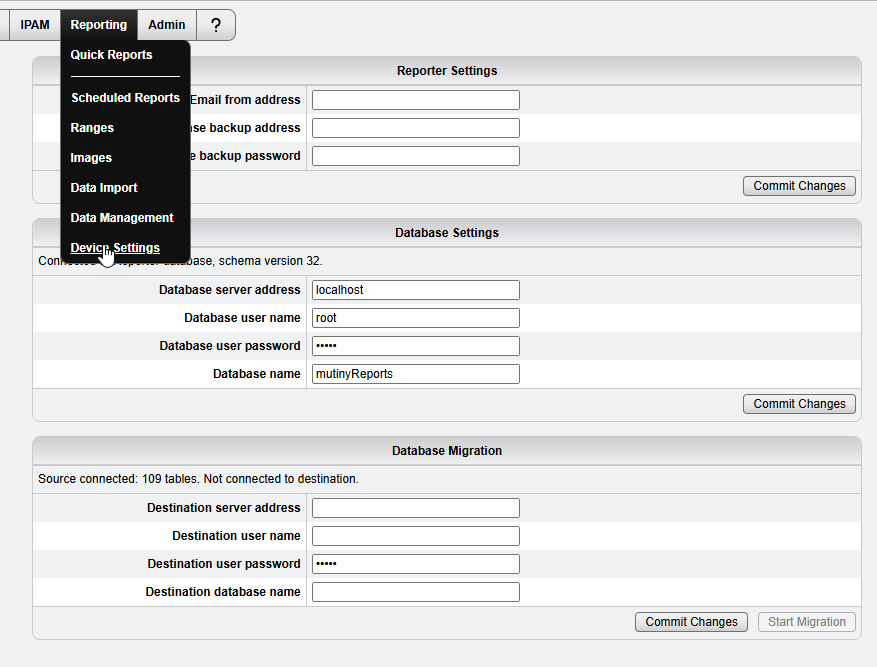
Now go back to your OLD Mutiny appliance (the one you are transferring the database from) and go to the“[Reporting]=>Device Settings]” page and look in the “Database Migration” section at the bottom of the page.
The Destination IP address needs to be that of your NEW Mutiny appliance and you also need to set the Database-user name to be "import" with the Database-user password "PASSWORD".
When you have done this, click the “[Commit Changes]”.
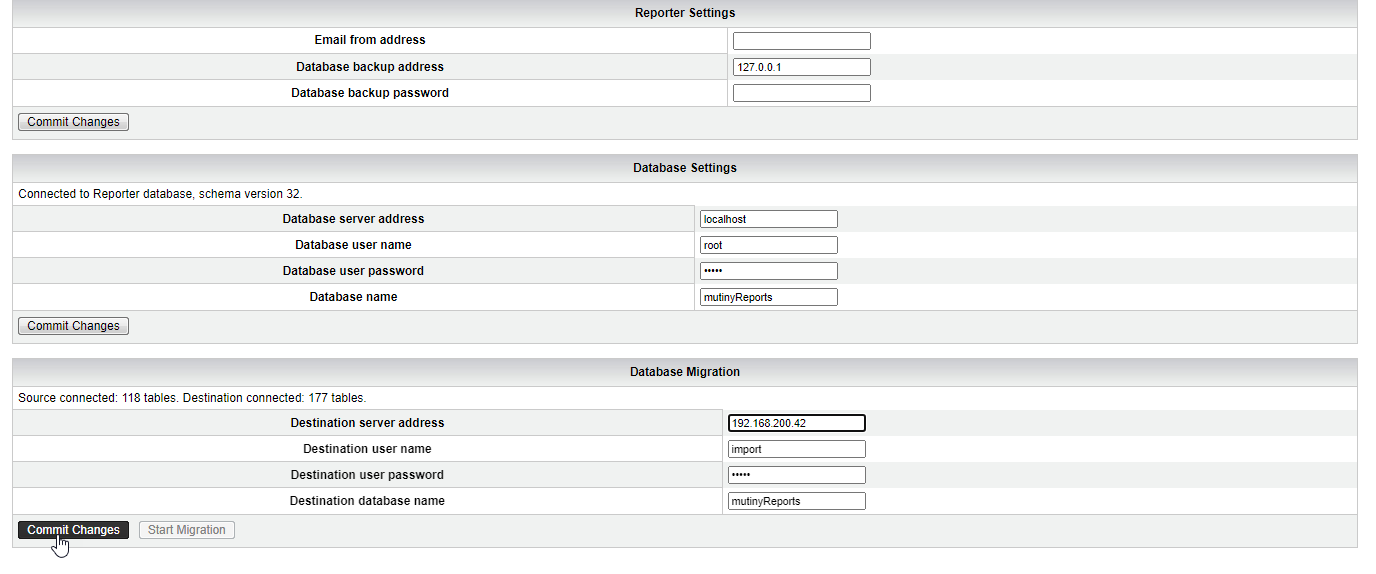
The old system should then be able to connect to the new Mutiny system, allowing you to click the
"[Start Migration]" button on the OLD system.
The database migration may take several hours to complete.
Please let us know how you get on.